Semrush is one of the foremost digital marketing tools that helps in regularly monitoring the performance metrics of websites and their competitors, especially in terms of SEO and PPC (Pay Per Click). In this comprehensive guide, you will find detailed information on how to use Semrush and its various tools.
1. Starting a Project: Site Audit and Detecting On-Site SEO Issues
The first step in measuring the online visibility of websites is to add the website as a new project. Semrush is very user-friendly when it comes to adding projects.
After creating a Project, you can configure Semrush's 11 different project tools that help measure online visibility and manage campaigns aimed at increasing it:
- Site Audit
- Position Tracking
- On-Page SEO Checker
- Social Media Monitor
- Social Media Sharing Tool
- Brand Monitoring
- Backlink Auditing
- Link Building
- PPC Keyword Tool
- Organic Traffic Information
- Content Analyzer
This is different You can convert the data you obtain from the tools into reports in different file formats using Semrush PDF Creator. This is particularly useful for quickly and easily generating various types of reports.
1a) Semrush Site Audit
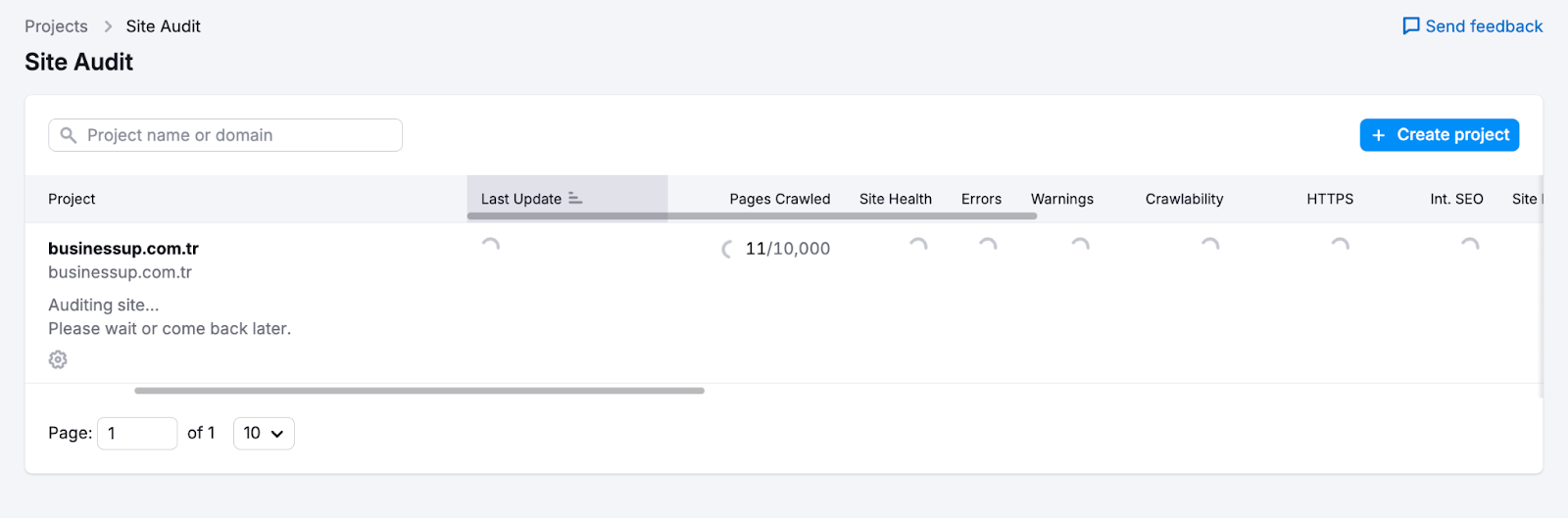
The Site Audit tool provides useful information about a website's technical errors. With this tool, you can get detailed information about the status of the website. It crawls websites like Googlebots and produces a report on technical issues affecting website health and organic performance.
In the Site Audit Overview Report, you can find the crawl results under the categories "Site Health", "Errors", "Warnings" and "Notifications". Site Health is basically the quality score of a website. Errors refer to serious problems found during the scan; Warnings indicate less serious problems; and Notifications refer to suggestions to improve quality by sending better signals to search engine bots. With scheduled audits, you can regularly track changes in quality score and overall website health.
1b) Semrush Position Tracking Tool
After determining your target keywords for your campaign, you can track these words using the Position Tracking Tool. Target keywords can be tracked in a variety of ways (manually, through campaigns, using analytics accounts, etc.).
You can also track your competitors' rankings for the same keywords and stay up to date on your competitors' performance by tracking changes in their rankings. Thanks to this tool, you can see the best and worst performers of the tracked keywords and get information about SERP Features (Search Engine Results Page Features) that can increase the visibility in searches of these keywords. Additionally, you can create dynamic dashboards thanks to Google Data Studio integration.
1c) Semrush On-Page SEO Checker
The On-Page SEO Checker provides a list of steps that can be taken to improve your rankings for your target keywords. Once you determine your organic search performance, you can improve your on-page SEO using this tool.
Based on the data this tool provides, you can determine your next steps, from making technical SEO improvements to increasing the number of high-visibility keywords and getting more backlinks. In addition to the Site Audit tool, the On-Page SEO Checker is another simple way to improve website health with easy adjustments.
1d) Semrush Backlink Audit Tool
Backlink Audit Tool helps you avoid Google penalties for harmful backlinks by examining your domain's backlink profile. This tool provides users with the workflow of checking all links, analyzing malicious signals associated with suspicious links, emailing website owners, and ultimately creating a disavow file to send to Google.
The tool integrates with Google Search Console, Google Analytics, and Majestic to provide the most accurate backlink data and allows you to create reports to track new or lost backlinks.
1e) Semrush Link Creation Tool
Link Building Tool compiles a list of link building opportunities for a domain and provides a management interface that allows users to run an outreach campaign to obtain potential links. In this way, you can make a competitive analysis on your SEO competitors and perform reach analysis.
You can create comprehensive lists of reach candidates based on target keywords and competitors, provide a workflow to manage the reach campaign, and speed up this process with Gmail and Google Search Console integration. Additionally, the "Monitor" report helps you track your campaign's progress over time. You can also use the feature to automatically retrieve contact information from target websites during your access process.
1f) Semrush Content Analyzer
Content Analyzer helps you learn how your digital content is performing both on and off the site. This tool is used to measure metrics such as social shares, backlinks, and keyword rankings along with Google Analytics data (e.g. sessions and bounce rate). The two main functions of the tool are to monitor website content engagement (Content Audit) and measure the reach of your off-site content (Post Tracking).
You can make this tool more efficient with adjustable content audit tables and integration with project management tools such as Google Calendar or Trello. The ability to integrate with Google Analytics and Google Search Console helps you better track content performance.
1g) Semrush Organic Traffic Insights
This tool brings together all Google Analytics, Google Search Console, and Semrush data into a single dashboard. The mentioned data includes data such as click-through rate (CTR), sessions, keyword volume, organic keywords and rankings obtained by Semrush and Google Search Console.
With this dashboard, created with data obtained from 3 different tools to monitor the organic search performance of your website, you can determine the keywords tagged as "not-provided" by Google Analytics. With this tool, you can perform desktop, mobile and tablet analyses, perform geolocation-based traffic analysis, and further increase your coverage and insights.
2. Finding and Analyzing Competitors
2a) Organic Research Tool
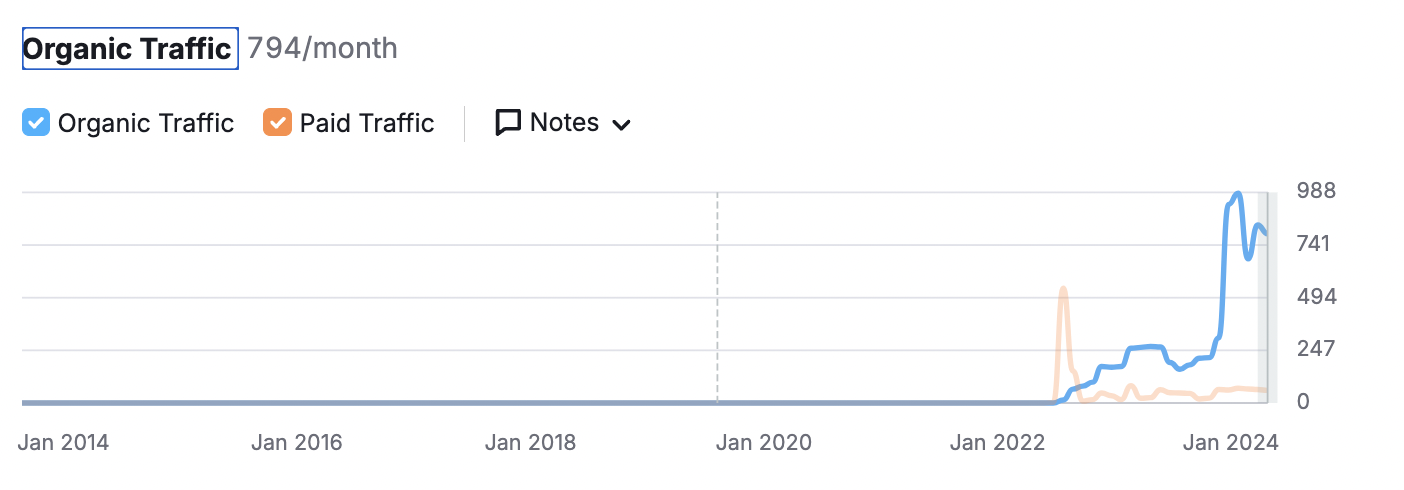
With Semrush, you can not only obtain data about your industry competitors' websites, but you can also learn about any website in any industry that is outperforming you on your target keywords.
One of the simplest ways to find your organic search competitors and get quick insights is to use the Organic Research tool included in the Competitive Research toolset. With this tool, you can:
- Explore your competitors' desktop and mobile keyword rankings and browse the landing pages displayed in SERPs (Search Engine Results Pages) for specific keywords. You can also see how much organic traffic a search term is driving.
- You can keep a close eye on intense competition and look at charts to see where your website stands among other organic search competitors. You can also see a list of other competitors you are competing with for rankings in Google and Bing search results.
- You can track how your competitors' positions in organic search results are changing and identify keywords that help your competitors gain more visibility and higher rankings. You can also evaluate the results of your improvements and determine whether further optimization is needed.
Once you identify your competitors, you can use the following tools to gain insight into their strategies, measure where they stand on key performance metrics, and compare your own metrics to those of your competitors.
2b) Traffic Analytics
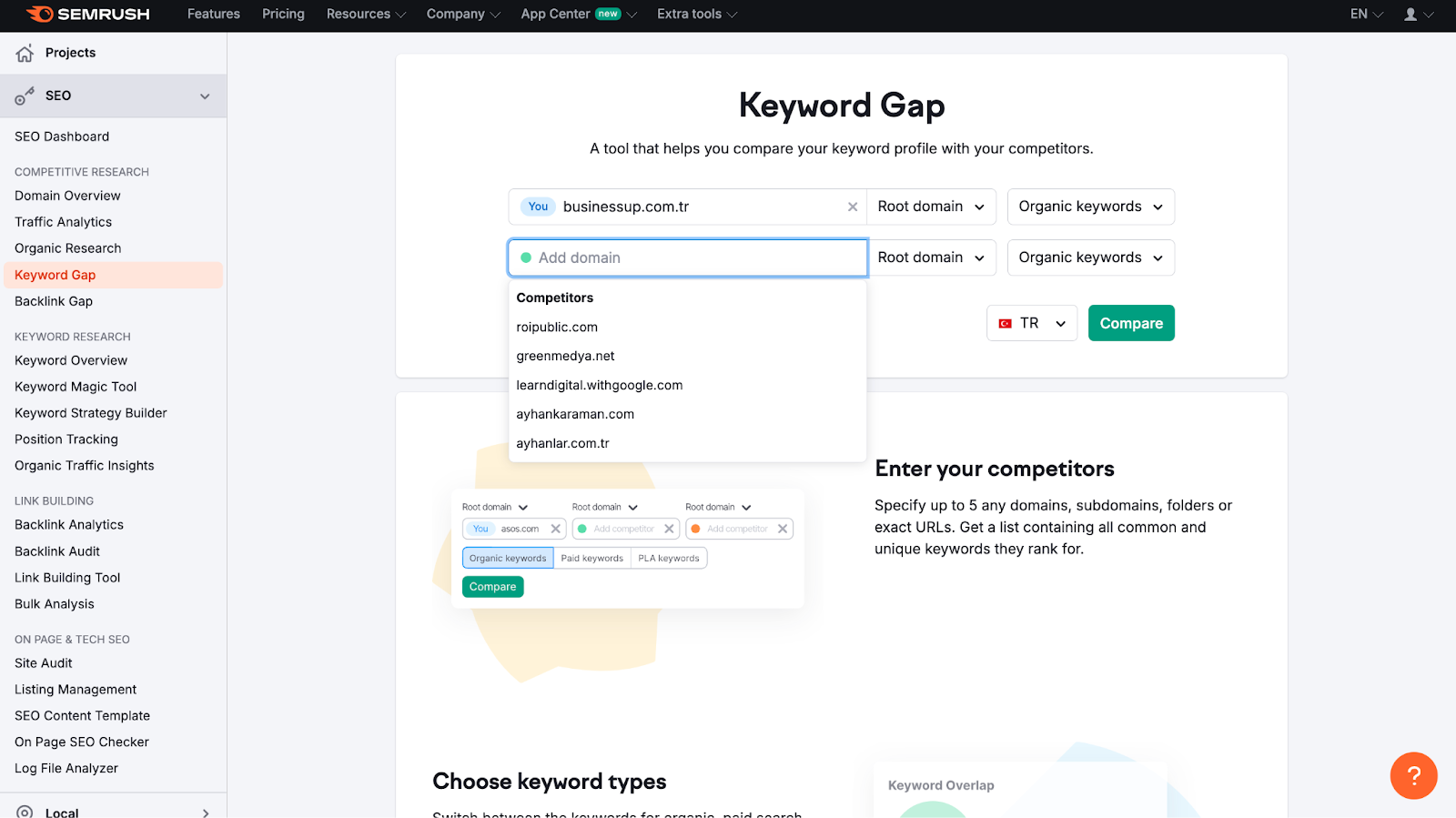
Traffic Analytics allows you to get a complete view of any website's search performance and information about online performance. Allows you to view all metrics. You can also compare traffic data of several websites side by side.
- Overview: You can check the traffic metrics of any website and make comparisons with multiple competitors. You can view metrics for visits, unique visitors, and user engagement on desktop and mobile. You can also view direct, referral, search, social and paid traffic for any website and identify markets by examining the geographic distribution of website traffic.
- Audience Information: Shows you how many people visit your competitors' websites and gives you an idea of audience overlap. You can get a complete list of the websites your visitors go to and compare unique and shared audiences. In addition, you can measure your website's potential reach and take a look at users' category and brand preferences.
- Traffic Journey: It helps you analyze where your audience is coming from and what factors play a role in attracting them to your website. Using this report, you can identify the websites that refer the most users and identify marketing strategies. On the other hand, you can view the social media platforms that bring in the most traffic and thus learn more about your audience.
- Top Pages: You can gain insight into the customer journey by viewing the most popular pages and content for any domain. This report shows the most important pages on a particular website, identifying the products and services that competitors are actively promoting and on which channels they are promoting.
- Aggregated Web Traffic Analysis: You can check traffic data and aggregated traffic analysis of up to 200 websites in a single report. You can check the web traffic statistics of all your competitors, potential partners or potential customers and export the main statistics as a report in .csv format.
- Geographic Distribution: Allows you to find the most profitable markets worldwide for any website. By identifying the countries and regions where your competitors receive the most visitors, you can observe how user behavior differs between countries.
2c) Backlink Analysis
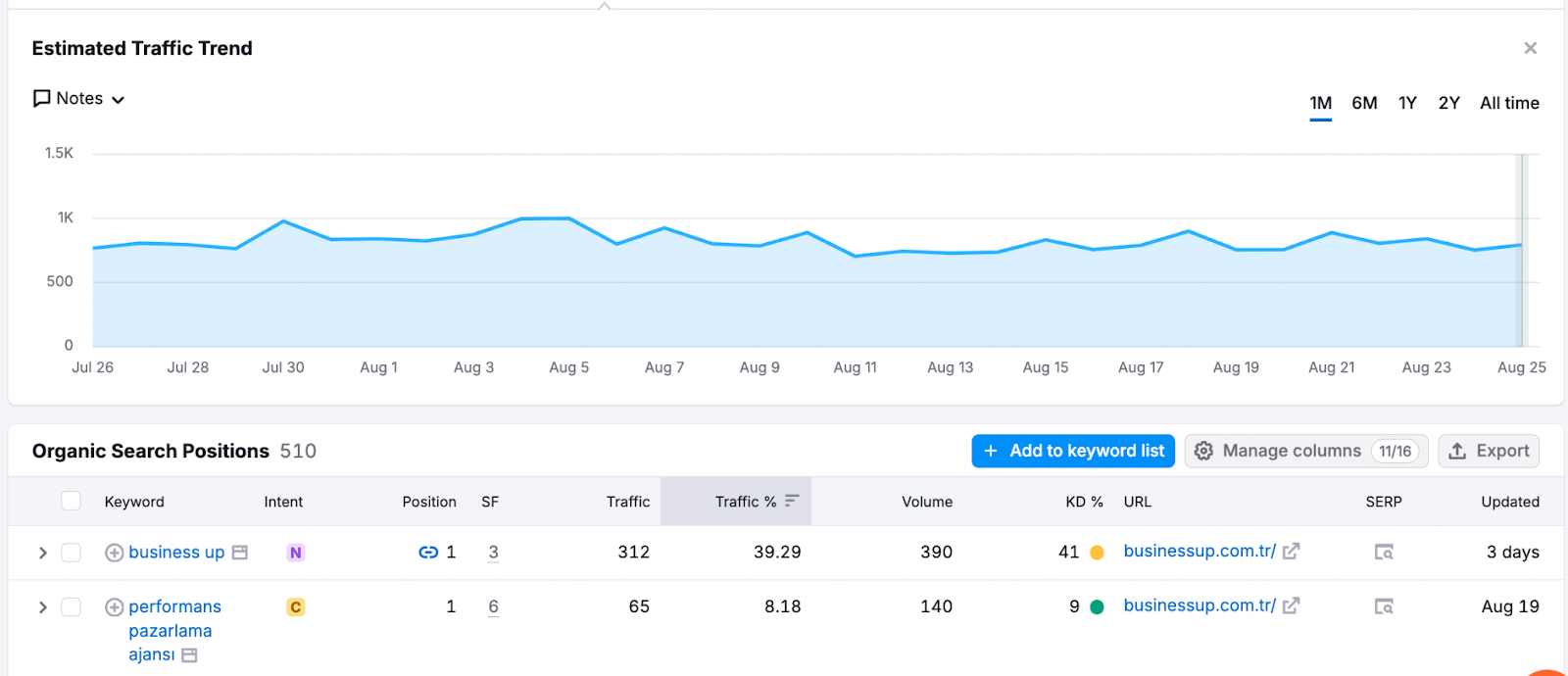
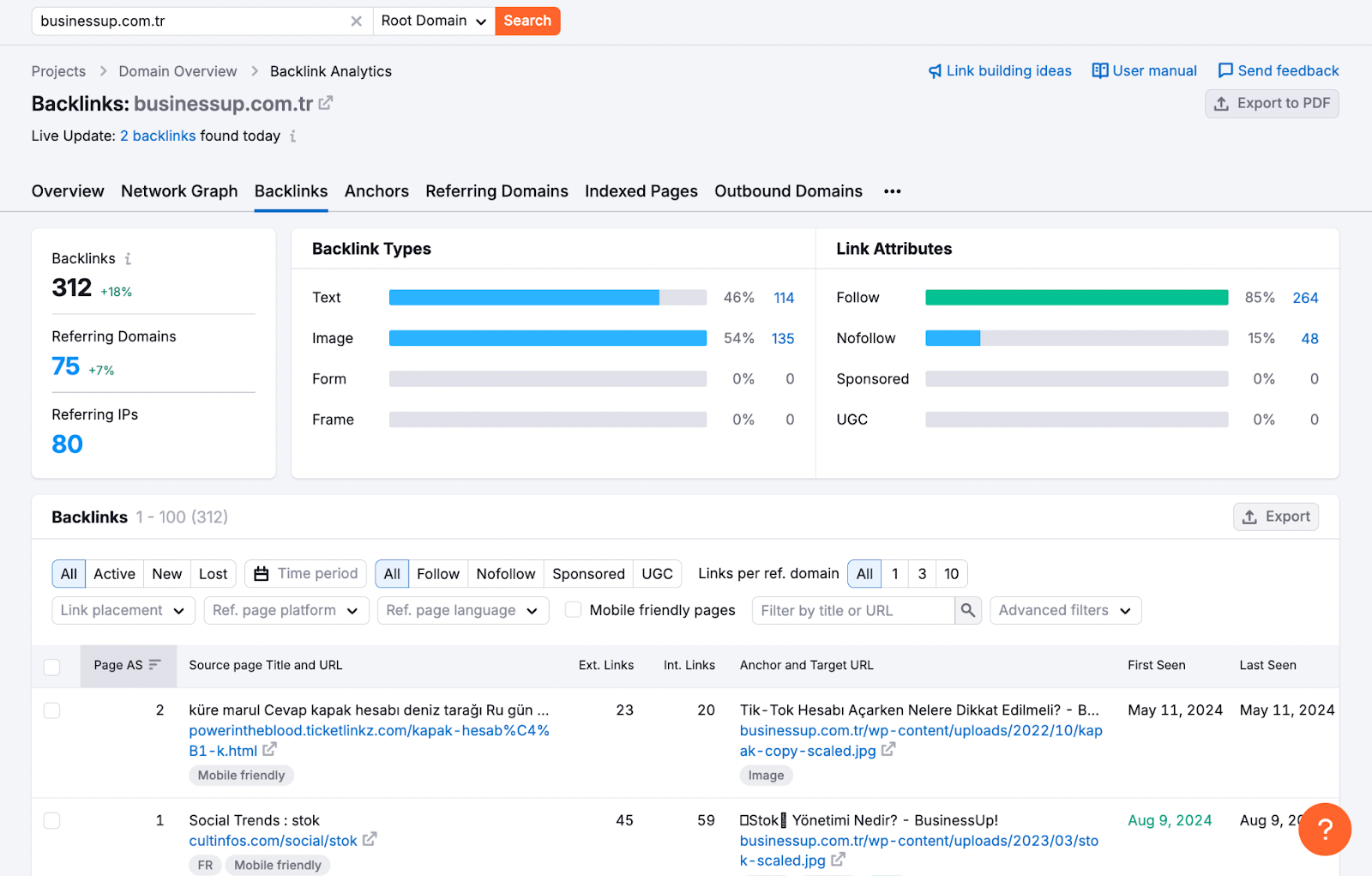
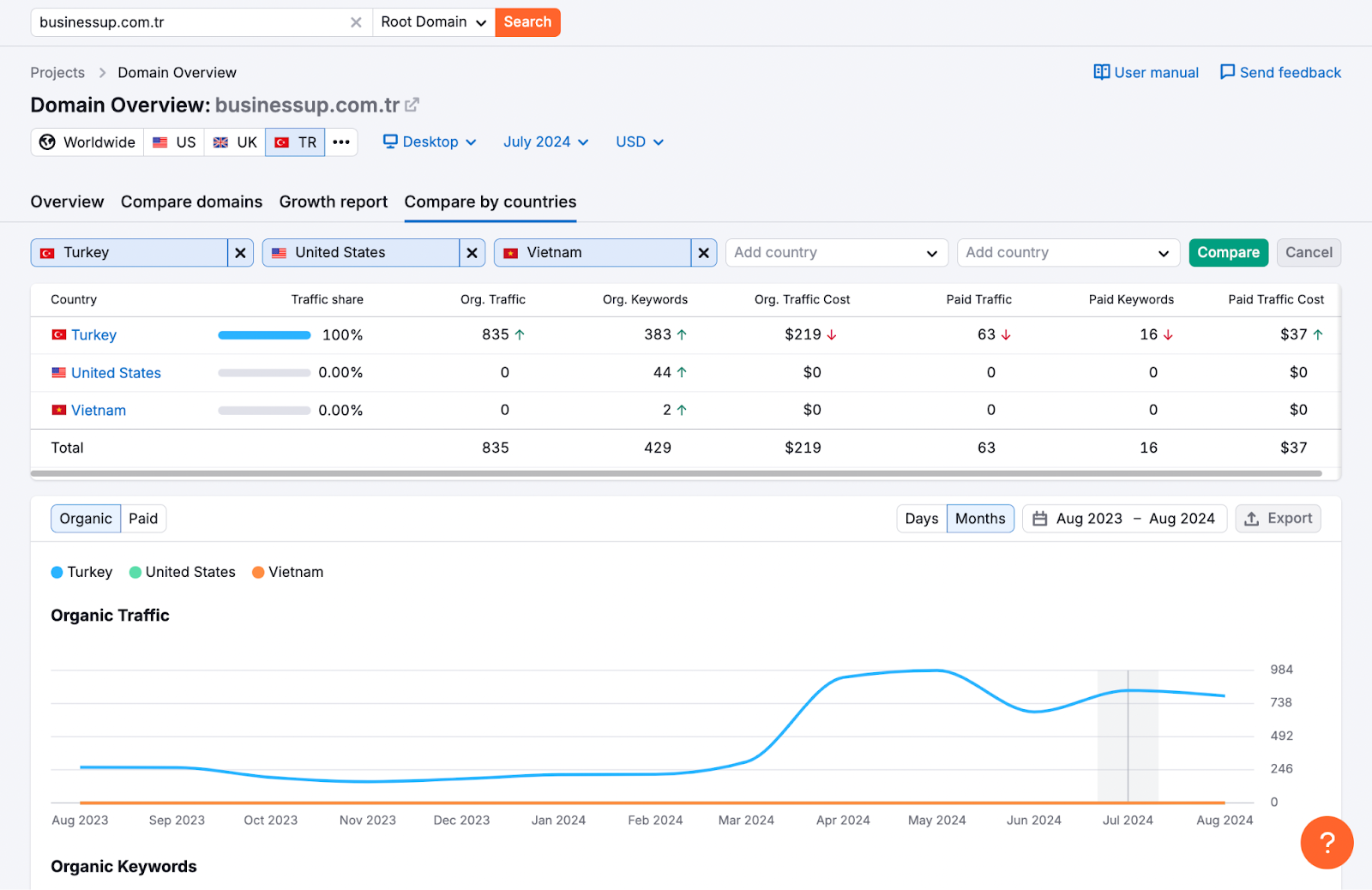
Semrush Backlink Analytics tool allows you to view the backlink profile of any domain.
To provide the clearest picture of a particular backlink profile, Semrush regularly purges duplicate and irrelevant links from its database, thus providing the most current and largest links in the industry. (+43 billion) backlink database.
Backlink Analysis tool informs users when new backlinks to your website are formed or existing backlinks are deleted or lost. For a limited period of time, you can view data about new and lost backlinks.
With this tool, you can discover all backlinks from all domains, subdomains or URLs and view the distribution of IP, TLD and location.
According to backlink types, you can use text/image/form/frame or follow/nofollow/sitewide filters for more detailed analysis and click on the most backlinks. You can determine the owner pages and the anchor texts of these backlinks.
You can obtain comprehensive information about your backlink profile by learning the authority level and position of the referring domain.
2d) Keyword Difference
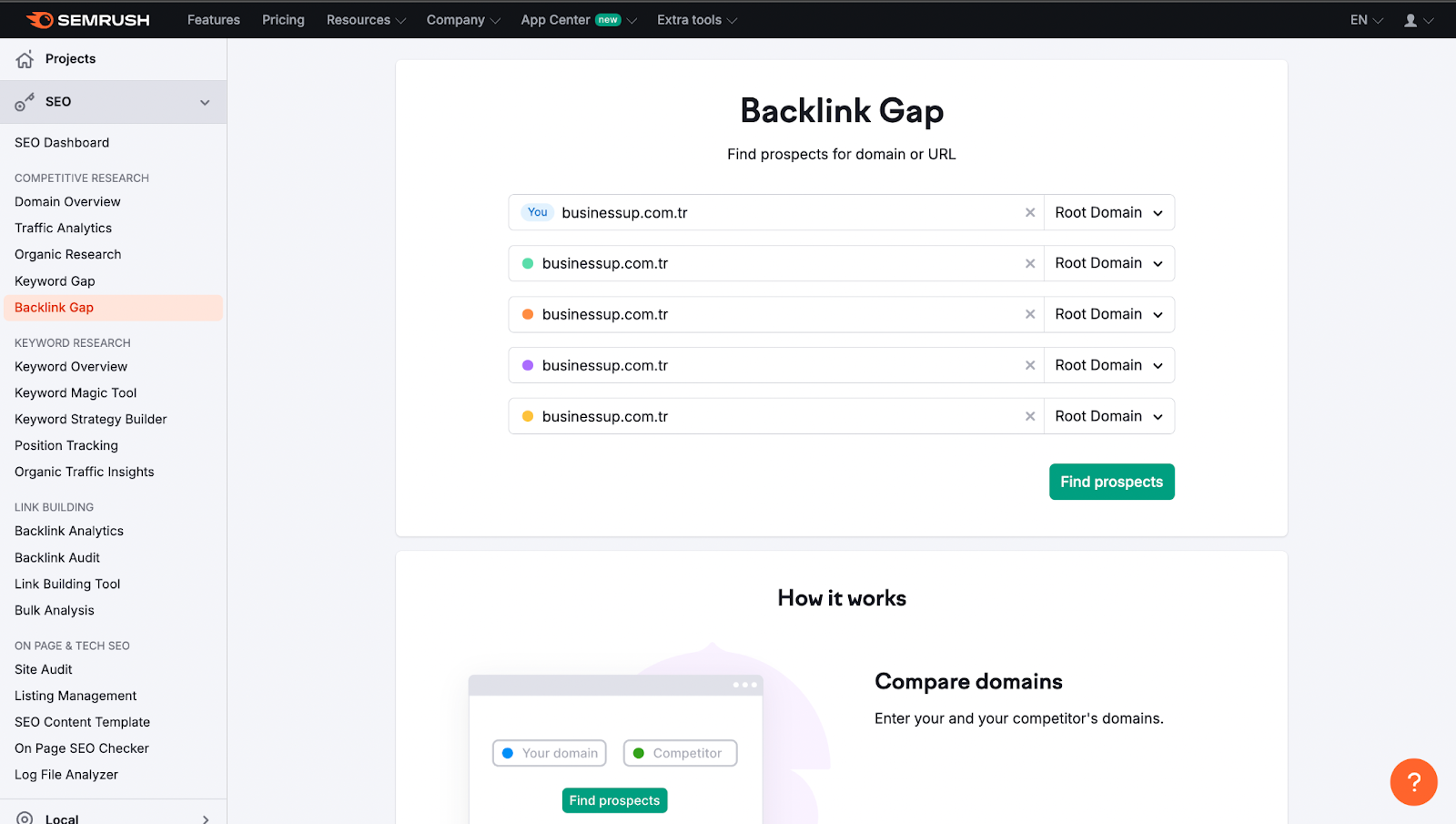
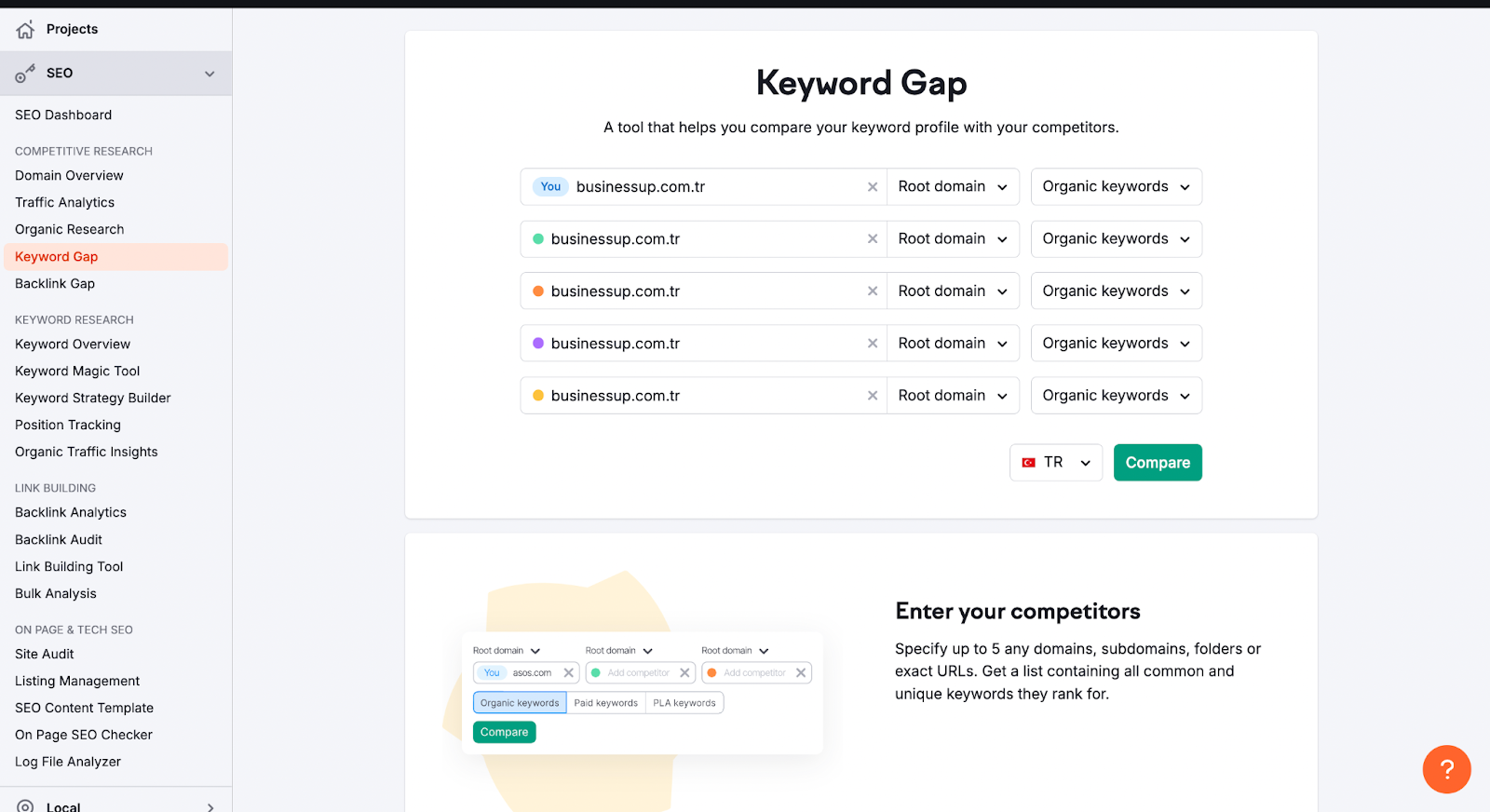
The Keyword Difference tool provides side-by-side comparison of keyword profiles of up to five competitors.
You need to enter the domain names of your competitors and You need to choose the ranking types to analyze (organic, paid or PLA keywords). You can then view all top rankings for each website, total keyword overlap, common keywords shared by different sites, and much more.
- Enter the domains you want to compare. You can use the Organic Research Competitors report or the Advertising Research Competitors tool to identify your top competitors and other domains with similar keyword rankings. Once you enter your domain name, some top competitors will automatically be listed in the drop-down menu under the competitors area. It is also possible to enter a specific URL, subdomain or subfolder into one of these fields and compare keywords in more detail.
-
Select "Keyword type". This filter allows you to select the type of search engine results you analyze:
- Organic keywords: Keywords for which a domain has an organic ranking within the top 100 search results.
- Paid keywords: Keywords for which the domain is ranked in the top 8 positions of Google, thanks to Google Ads are the words.
- PLA keywords: These are the keywords that trigger the domain's product listing ads and are paid through Google Shopping.
- Compare different keyword types. By clicking "Select keyword type for each domain", you can compare different keyword types between websites. For example, you can compare your paid keywords to a competitor's organic keywords. You can also compare different keyword types on the same domain or enter the domain name twice and adjust the keyword types accordingly.
- Select the regional database and click the "Compare" button. The report will then present the relevant information in the Top Deals widget, the Keyword Difference chart, and the keyword table at the bottom.
The report is divided into three main sections. consists of:
- Best Deals widget: Lists the best keyword deals for the website tagged "You" (the domain name entered in the first field). This information, like the rest of the report, will be adjusted based on any selected filters. For example, you can search for top deals based on a filter that includes a keyword like "nike."
- Keyword Difference visualization: Shows keyword overlaps between competitors. When you click on a specific intersection, the report will only show keywords from that intersection. You can enter other filters to adjust the data accordingly.
- Keyword Table: This is the table at the bottom where you can examine the details of each site as well as how its keyword profile intersects with competitors.
There are 7 main types of filters in the Keyword Table:
- Shared: Shows the keywords for which the analyzed websites are ranked.
- Missing: Shows the keywords for which all your competitors rank but your website (the site entered in the first field) does not rank.
- Weak: Keywords for which your website ranks lower than all your competitors. Shows.
- Strong: Shows keywords for which your website ranks higher than all competitors.
- Undiscovered: Shows keywords for which you don't rank, but one of your competitors does.
- Unique: Shows keywords for which you rank but your competitors don't. shows.
- All keywords: Shows a combined list of all keyword rankings among competitors.
2e) Backlink Gap
With the Backlink Gap tool, you can compare the backlink profiles of five competing domains at once. After you enter the domains, Semrush creates a list of all referring domains that link to those websites. By using filters, you can identify backlinks that point to your competitors' websites but not to yours. This can help you gather information about your competitors' outreach strategies and find potential SEO opportunities. Backlink Gap provides a graph showing the backlink growth of competing sites over time; This will help you identify the backlinks you are missing. You can also get actionable link building and reach insight reports in Excel and CSV files.
- Select competitors. There are several different ways to select competitors to include in the report. After entering the domain name you want to analyze, you can see automatically suggested competitors by clicking on one of the input fields (taken from the Backlink Competitors report). If you want to look beyond just your organic search competitors, you can also use the Organic Competitors report.
- Examine the graph and table. The tool will present a graph and table showing the comparison between competitors' backlink profiles. You can see the competitors with the most backlinks at the top of the trend chart. By changing the time frame, you can see the number of backlinks for the last 3 months, last year or all time. You can also see important notes from Semrush or Google that may affect the number of backlinks that day.
The table right below the chart shows all referring domains that provide backlinks to the entered websites. This data is also available in the Backlink Audit tool.
- Authority Score (AS): A composite metric that measures the quality of a given domain.
- Matches: This column shows the number of analyzed domains that that referring domain links to. These matches are made based on the domains analyzed.
- Referring Domains: You can narrow down the list of referring domains by filtering for specific domains. Just click on the drop-down menu located just above the table.
After expanding the row, you can view new, lost or followed links from a specific competitor. To do this, simply click on the drop-down menu in the column of the competitor you want to analyze further.

3. Keyword Research with Semrush
Using the Keyword Magic Tool, you can gain insights about the target keywords you want to research, analyze the data, and make improvements to increase your rankings on the target keywords. You can search by entering your target keywords or domain name and view automatically grouped keywords. With
- Competitive Density (Competitive Density) you can find out the level of competition among advertisers bidding for a particular keyword in PPC campaigns.
- Keyword Difficulty (Keyword Difficulty) for a particular keyword You can find out how much SEO effort it might take to organically place a page in the top 20 results on Google. With
- Search Volume (Search Volume) you can obtain the average monthly search volume of a particular keyword and evaluate the potential search engine traffic for that keyword. With
- SERP Features (SERP Features) you can see which of your tracked keywords appear in search results. You can see what SERP features are available and how many of your pages are featured.
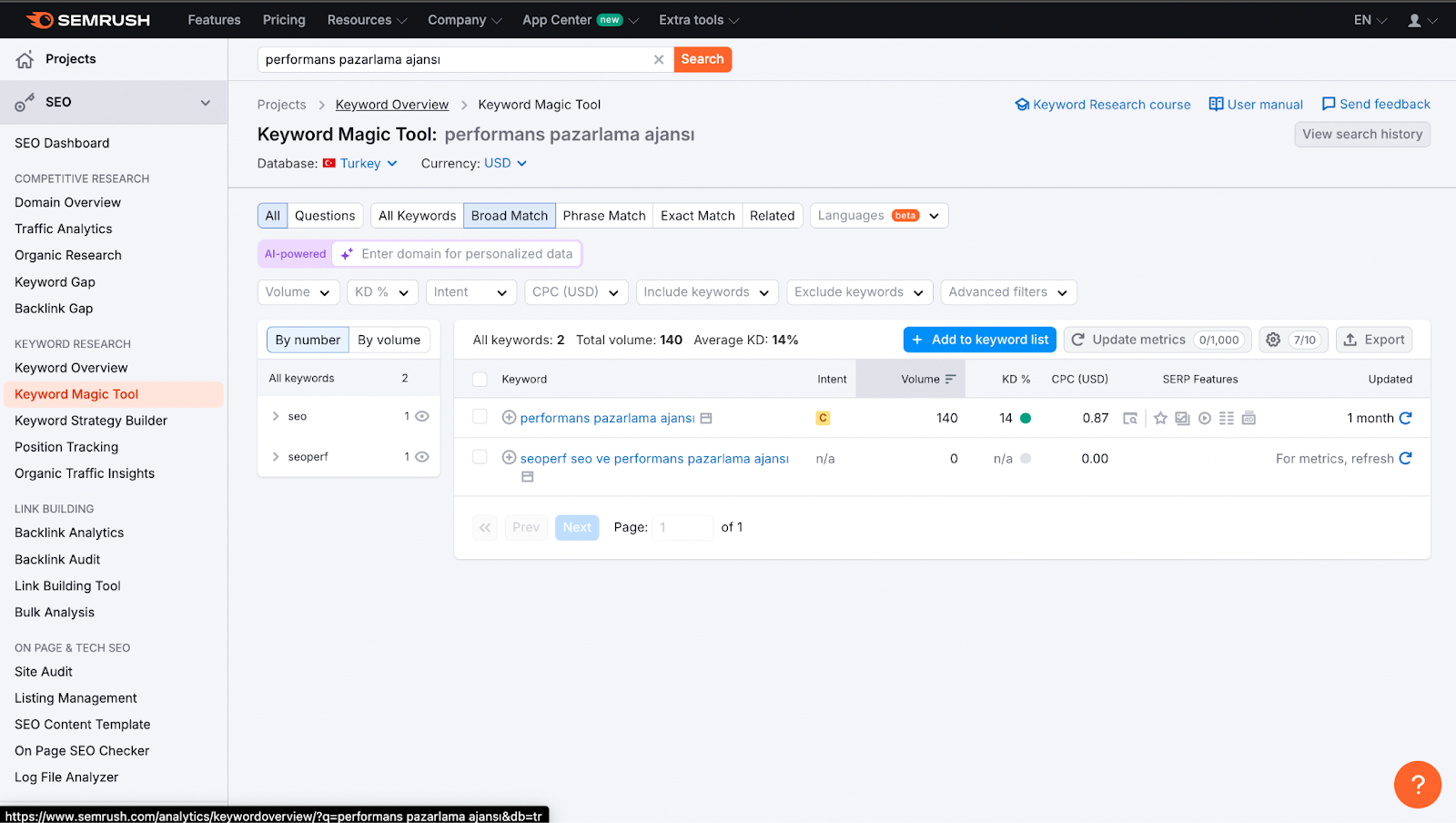
In addition, Semrush provides an expanded keyword database with global keyword research capabilities. In this way, you can do keyword research for multilingual websites and optimize your content with keywords automatically grouped by topic. You can even find question-based search queries using the question filter.
3a) Long-Tail Keyword Research with Semrush Keyword Magic Tool
Once you identify general topics and target keywords, you can take keyword research one step further by using the Keyword Magic Tool.
For more keyword ideas, enter your target keyword here as “shorttail keyword” (for example, “tile”).
- You can apply the KD% (Keyword Difficulty) filter to identify keywords that are easy to target and related.
- Longtail keyword with at least four or more words Apply the Word Count filter to find words.
Browse long-tail keywords in this report and search for related topics to add to your list. If there are many long-tail keywords around a single subtopic, it might be a good opportunity to target it.
4. Optimized Content Production for Better Ranking and Visibility
To improve the SEO performance of your website, you need to produce SEO-friendly content regularly. SEO Content Template tool is one of the tools you can use to achieve optimal results when creating content.
Semrush analyzes the content of pages that rank in the top 10 in Google search results of target keywords and thus allows you to create SEO-friendly content by providing recommendations based on relevant keywords.
SEO Writing Assistant is a plugin that can connect your SEO Content Template to your Google Docs or WordPress account and integrate with Google Docs and WordPress. You can take content optimization one step further by using this tool. With SEO Writing Assistant, you can see your content score and optimization suggestions in real time as you edit your content.
5. Semrush Interface
5a) Dashboard
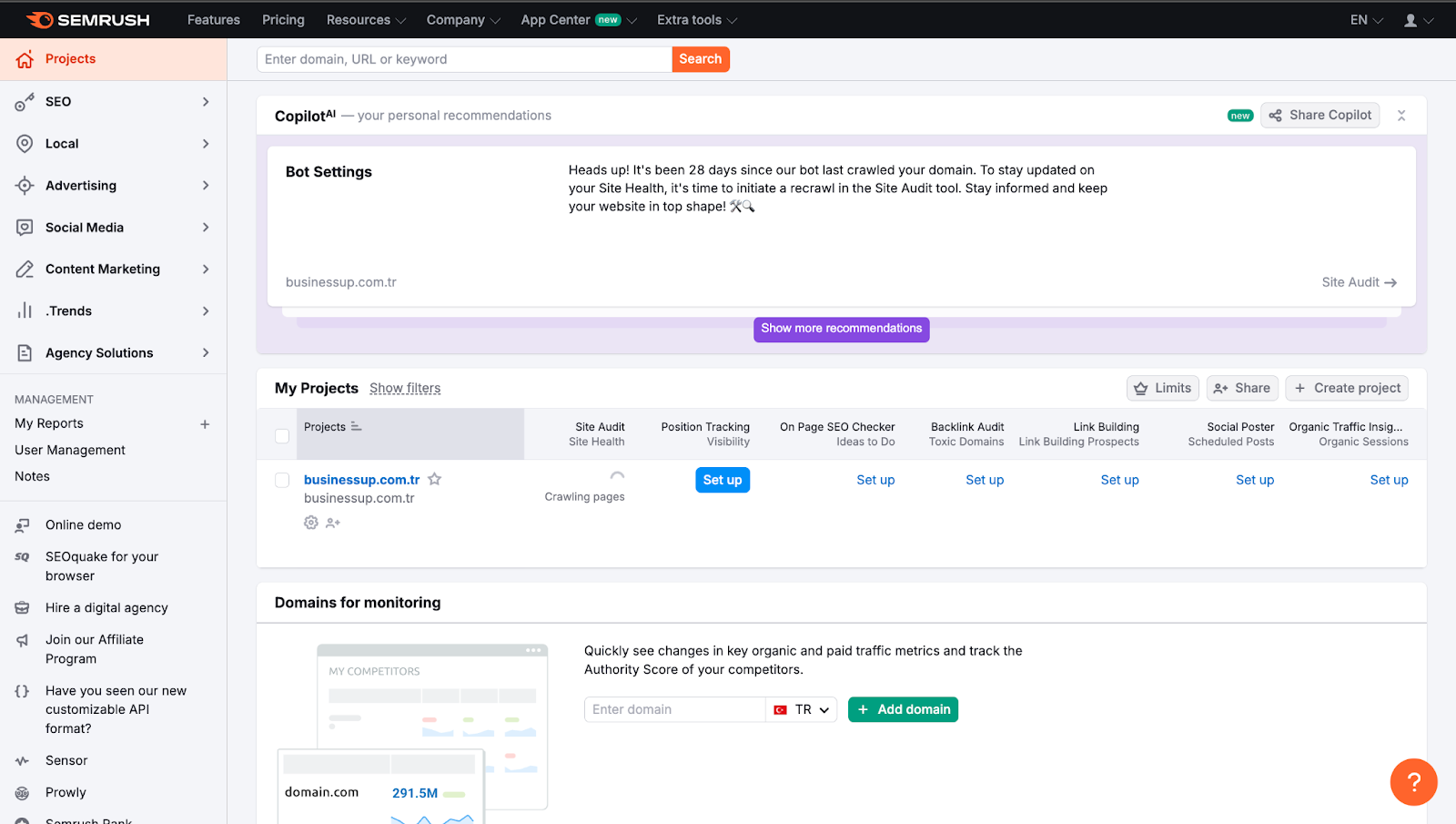
When you log in to your Semrush account, the first thing you will see is the dashboard that shows an overview of your projects.
- You can search using the search bar at the top of the page.
- You can go to reports from the navigation menu.
- Your menus, You can customize it to show the tools appropriate to your area of expertise.
- You can add domains to your control panel using the green "Add domain" button.
- You can add a new project or open the projects panel.
5b) There are Three Main Tool Groups in Semrush
- Analytical Reports: These are the reports of the searches you perform using the search bar. In this report, you can take a look at the output of Domain Analytics, Keyword Research, Backlink Analytics, Gap Analysis or Advertising Research modules. After performing a search using the search bar, you can view the relevant report in the navigation menu on the left.
- Project Tools: These are special tools that allow the analysis of a single domain name. Here you can access Site Audit, Position Tracking, Backlink Audit and Social Media tools. Adding a new project to Semrush is quite easy and you can view the details of your projects in the projects panel.
- Special Products: These are some special products offered by Semrush that are used to perform specific tasks. You can access most of these tools from the left-hand tool menu.
The default navigation menu displays “SEO Toolkit.” If you wish, you can change the menu to show only certain tools from another widget set. Here you can access different modules such as Local SEO, SEO, Advertising, Social Media, Content Marketing and Competitive Research.